












So, you’ve decided Showit is the move for you! Maybe you finally got tired of wrestling Squarespace into submission trying to make it look the way you actually want. Maybe you saw someone’s Showit site and had that “ugh WHY doesn’t mine look like that” moment.
Either way… you’re here, you’re ready, and I’m going to walk you through exactly what switching from Squarespace to Showit actually looks like.
I promise it’s not as scary as it sounds… But there are a few things worth knowing before you get started so you don’t accidentally tank your SEO or lose your blog posts in the process. Let’s gooo…
Do NOT cancel Squarespace… yet.
Start your Showit free trial (you get 14 days free, or a full first month of Showit free with my affiliate link), build your new site first, and keep your Squarespace site live until everything is ready to go. You should never be without a live website during this transition.
Before you switch: audit your existing keyword rankings
This step takes 20 minutes and could save you months of lost traffic. Before you touch anything, go into Google Search Console and look at which of your Squarespace pages are ranking in the top 1-30 for any keyword. Export the data or screenshot it. (If you’re not sure how to use Google Search Console to check your rankings << I go over this step-by-step in this post.)
For any page sitting in positions 1-30, treat that page like it’s made of glass during the transition. Here’s what you’ll want to preserve:
- The H1 — keep it identical or as close as possible
- The meta title + description — copy them exactly into your new Showit page
- The URL — if you can keep it the same, do it. If not, set up a 301 redirect
- The word count + content depth — if your ranking page has 1,200 words don’t rewrite it as 400. Google ranked it at that depth for a reason. Match it or make it better
- Internal links — if the old page linked to other pages make sure those links exist on the new version too
Basically the rule is this: the more a page is ranking, the less you change it. You’re switching the platform not rewriting your SEO strategy. That doesn’t mean you can’t update the content of the page or the layout, but you should be paying close attention to your headings and the keywords you are using throughout the page.

What transfers + what doesn’t when you switch
Let’s just rip the bandaid off on this question:
- Your blog posts — YES, with a catch. If you have a blog, Showit can migrate your posts from Squarespace into WordPress for you. But, and this is an important ‘but’, you need to be on the Showit Advanced Blog plan for the team to do this for you. The Basic Blog plan won’t get you that migration support. After they move your posts, plan to do bit of cleanup. Featured images, categories, and formatting don’t always come over perfectly. It’s not hard to fix, just a little tedious. Set aside an afternoon for it. If you reallllly don’t want to pay for the Advanced Blog plan, and you only have a handful of posts, you can also choose to do this process manually with good ‘ol copy + paste.)
- Your design — NO. Your Squarespace design stays in Squarespace. You’re starting fresh with a new template or building from scratch in Showit and you’re not gonna miss your old design anyway 😉 This is actually the fun part, you get to pick something that actually fits your business instead of forcing Squarespace’s limitations on your brand.
- Your domain — YES, and it’s easier than you think. You can absolutely keep your domain registered with Squarespace and just point it to your Showit site. Showit’s integration with the Entri tool makes connecting your domain genuinely simple. You don’t need to be technical to do it. And if you have a Squarespace email address, that stays completely separate from your website hosting. Canceling your Squarespace website plan doesn’t touch your email.
- Your Squarespace add-on apps — NO. Things like email marketing, scheduling tools, and e-commerce that were baked into your Squarespace setup will need replacements. The good news is there are great options for all of these, like Mailerlite*, Flodesk or Kit for email, Acuity or Calendly for scheduling, ThriveCart* or Shopify for e-commerce. Most of these are not expensive and all of them integrate seamlessly with Showit.
- Your e-commerce products — NO. If you have a Squarespace shop, your products won’t transfer. You’ll need to rebuild your shop setup through a third-party integration. Worth planning for before you switch.
The SEO question everyone is nervous about
Switching your website to Showit doesn’t have to hurt your SEO at all. About 5 years ago, I switched from WordPress to Showit and my organic traffic actually went UP. The “you’ll definitely see a dip” warning you see everywhere online is only true if you don’t handle the technical side correctly.
The one thing that causes the most SEO damage is not setting up 301 redirects for pages where your URL changes. That’s the mistake. Google had your old URLs indexed, and if those pages suddenly don’t exist anymore without a redirect, it loses track of them.
What is a 301 redirect?
It’s basically a forwarding address for your website. It tells Google “this page moved permanently but here’s where it lives now.” Without it, anyone who had your old Squarespace URL bookmarked or linked to will hit a dead end, and Google will slowly stop trusting those pages.
How to handle redirects when switching to Showit:
Before you launch your new Showit site, make a list of all your current Squarespace page URLs. Compare them to what your new Showit page URLs will be. Anywhere the URL is changing, even slightly, you NEED a redirect.
If you have a lot of pages, you can actually reference your sitemap in Squarespace to make this even easier. Just visit this page on your site: mywebsite.com/page-sitemap.xml and copy and paste the list into your notes somewhere until you are ready to set up your redirects.
Once you have your Showit site designed the way you want, you’ll need to add your domain in Showit, publish your site and then add your redirects after that.
- If you have a WordPress blog on Showit, install the Redirection plugin and use it to set up your redirects. It’s free, straightforward, and Showit actually recommends it.
- If you don’t have a WordPress blog, you can set up redirects directly in Showit. Go to Site Settings > Custom Domain, and then hit the little gear icon next to your domain name to add your redirects.
- Once your site is live, submit your new sitemap to Google Search Console. It takes about 2 minutes and tells Google to crawl your new site immediately instead of waiting around.
Do it right and there’s nothing to be afraid of. Some people actually see an improvement because Showit’s clean code + WordPress blogging integration gives Google more to work with than Squarespace did.

Get ready for the builder to feel different
Showit is incredible but it IS a different way of thinking about design. Squarespace keeps you in guardrails like sections, blocks, and templates you can tweak within limits. Showit removes the guardrails entirely. You can put anything anywhere. That’s the power of it, but it also means there’s a small learning curve.
Give yourself grace in the first few days. Watch Showit’s tutorials, lean on their chat support (which is genuinely excellent and comes with the plan at no extra cost), and resist the urge to compare your half-finished Showit site to your polished Squarespace one.
You’re building something better. It just takes a minute.
Your Squarespace to Showit switching checklist:
- Start your Showit free trial. Don’t cancel Squarespace yet
- Choose your plan. Advanced Blog if you want the migration support
- Pick your template or start from scratch
- Audit your keyword rankings
- Contact Showit support to migrate your blog posts (Advanced Blog plan required)
- Clean up featured images + categories after migration
- Connect your domain in Showit. Keep email hosting + domain wherever it is
- Set up 301 redirects for any URLs that changed
- Launch + submit new sitemap to Google Search Console
- Cancel Squarespace only after everything is live + working
Ready to pick your template?
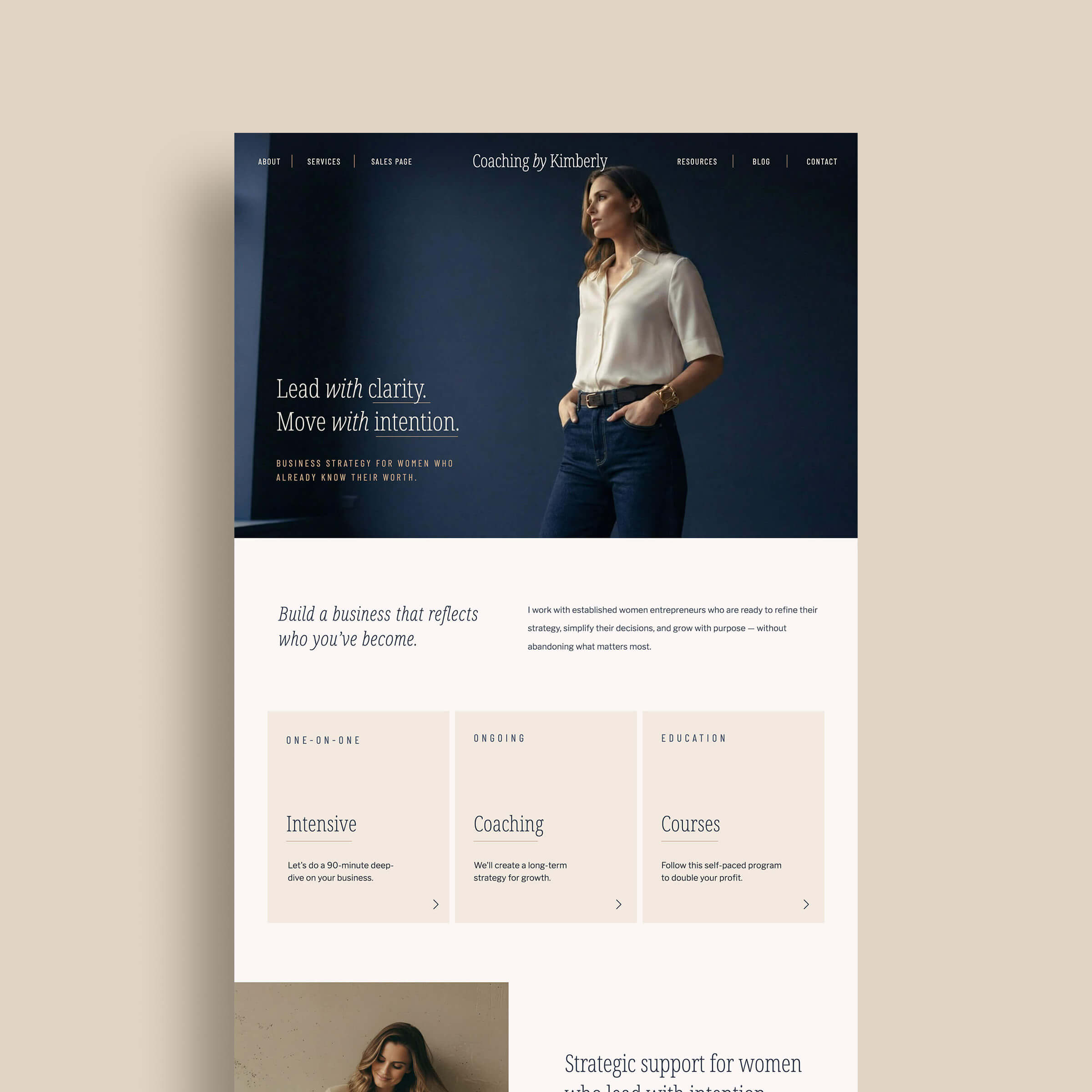
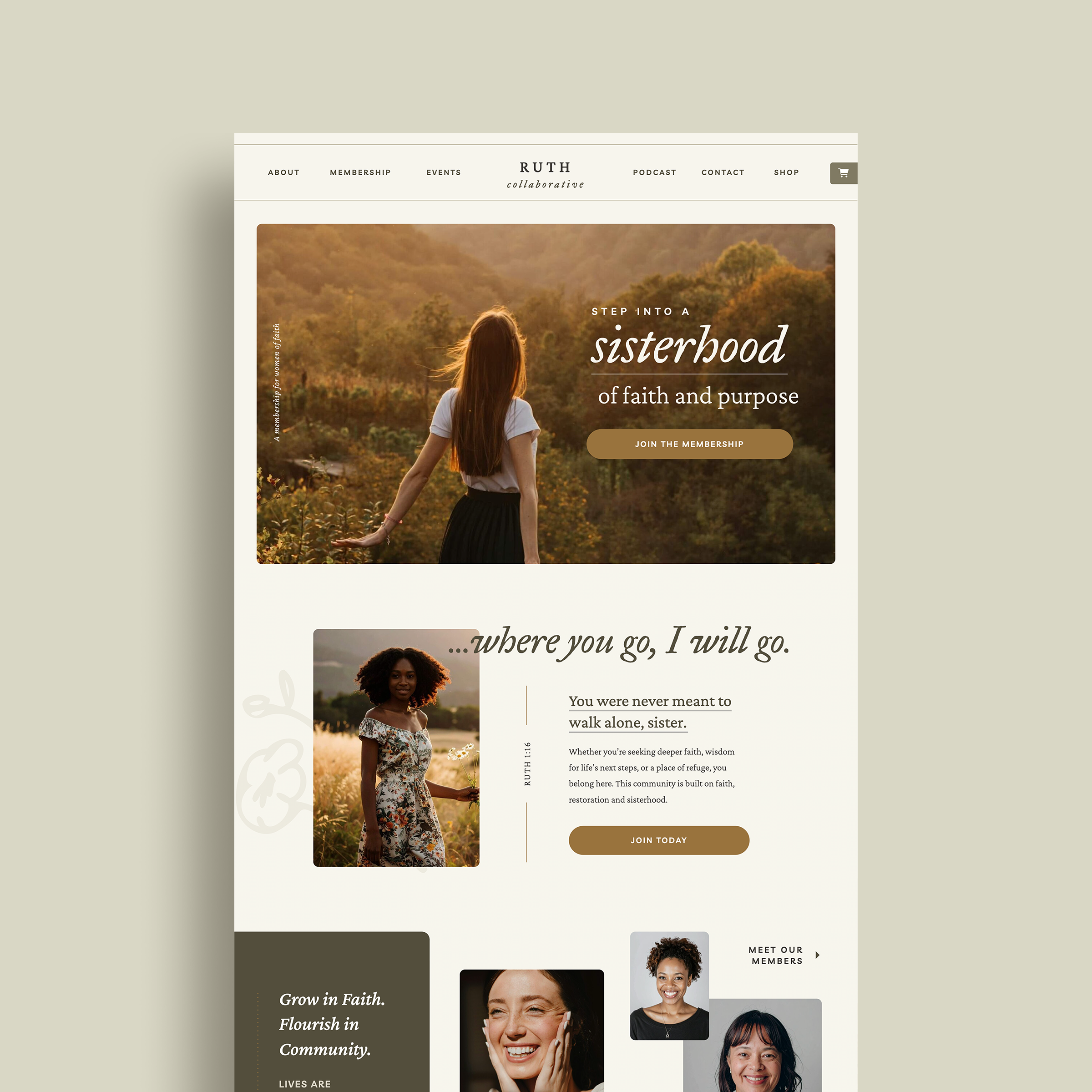
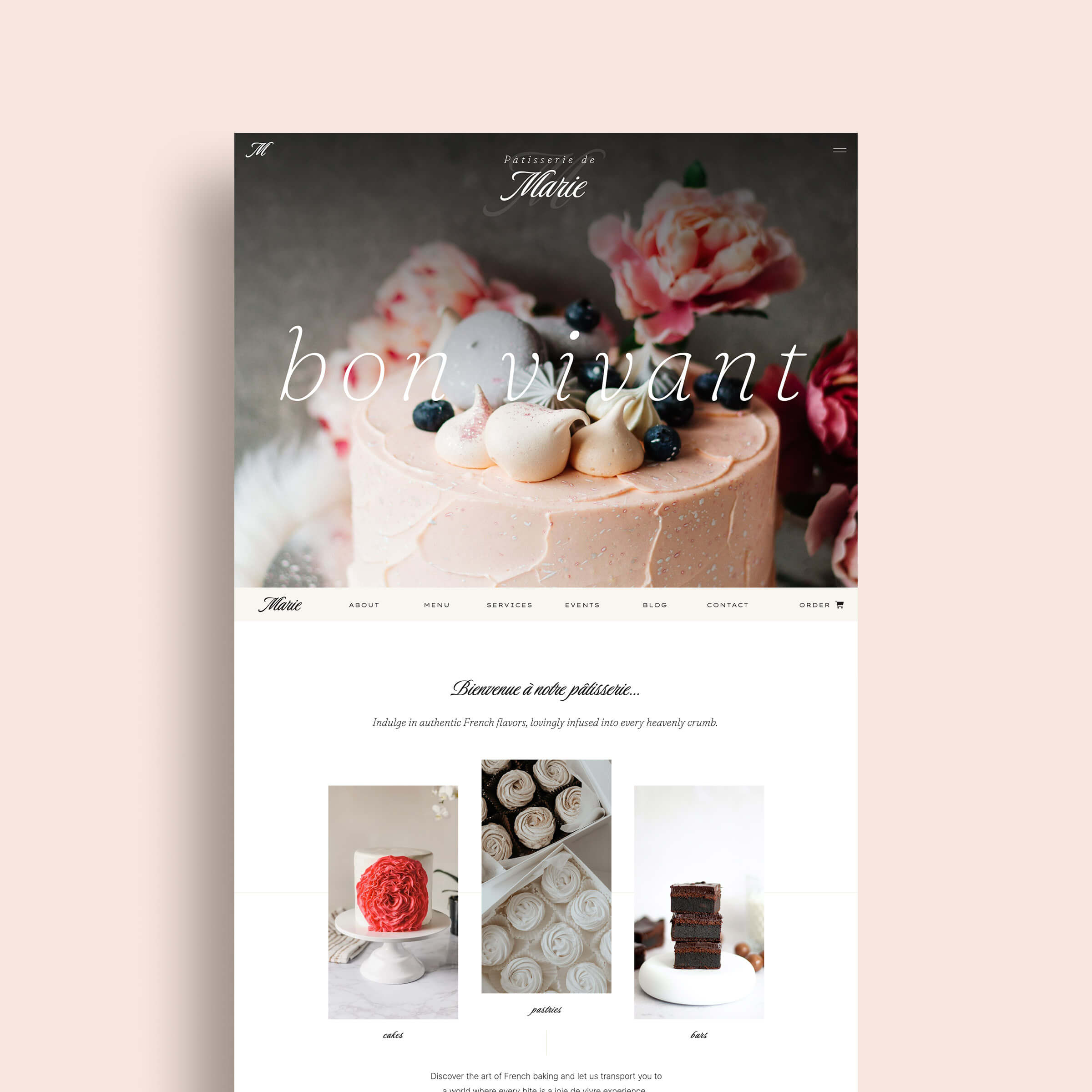
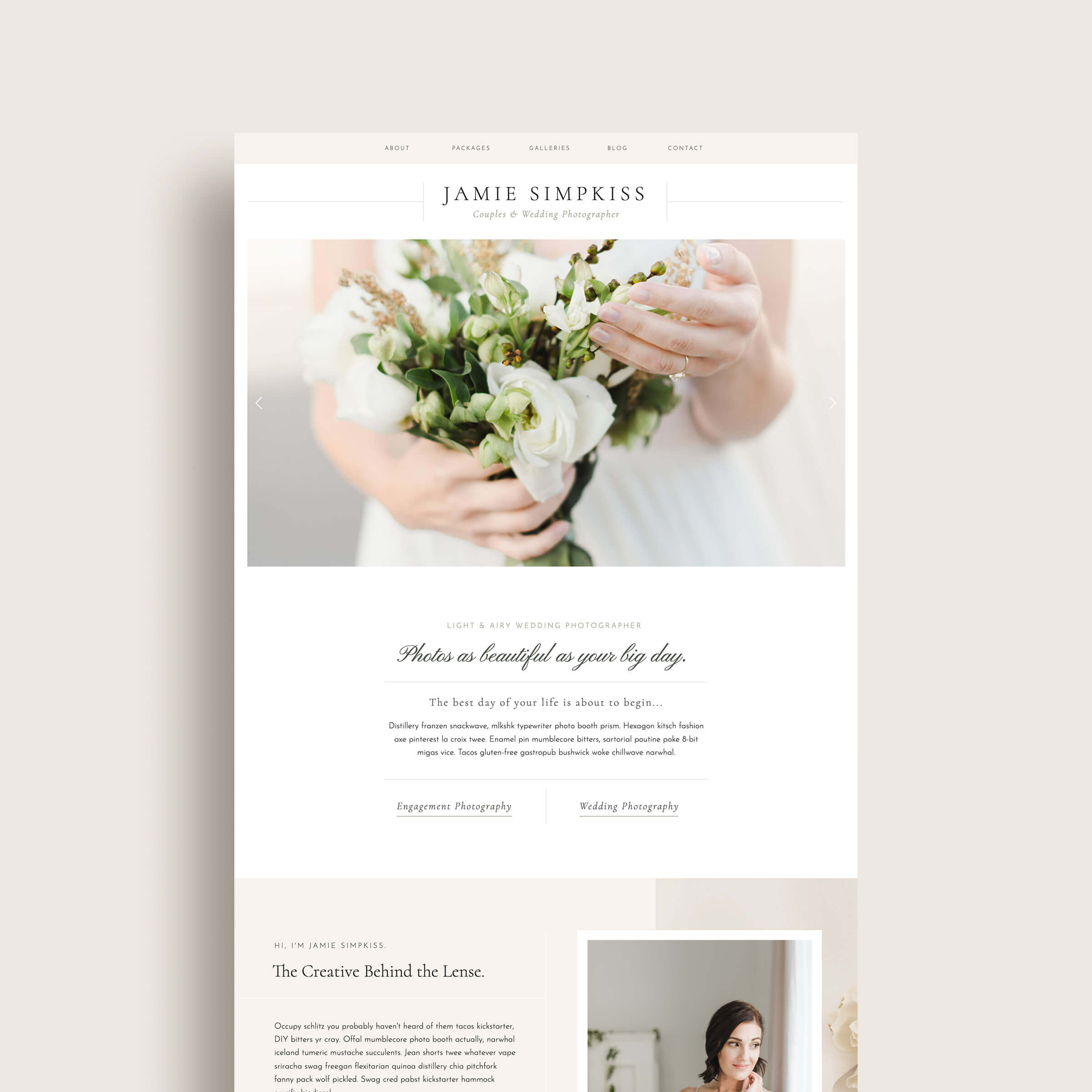
The right Showit template makes this whole process faster + more fun. If you’re a coach, course creator, or service-based business owner, check out the K Design Co. Showit template shop and find the one that was built for your business specifically.
Not sure which one is right for you? Take the 2-minute template quiz and get a personalized recommendation.
(This article contains affiliate links, which means I may receive a small commission for purchases made through links in this post at no extra cost to you. I only recommend products I 100% believe in and use myself. Read the Privacy Policy for details.)